 Carol Rozendo
Building a Game UI System with Claude Design
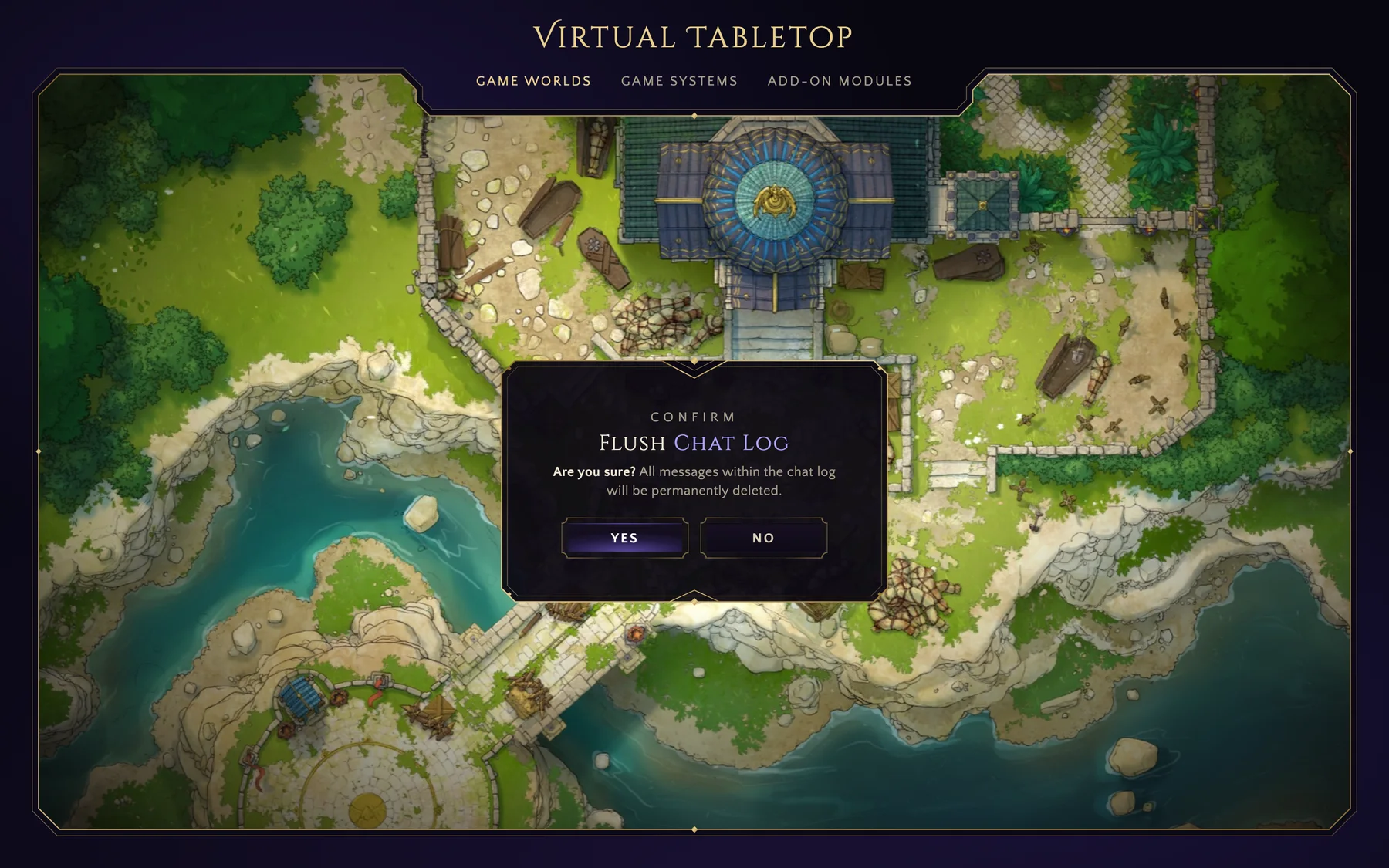
I am having a great time exploring the Claude Design. I decided to start building a design system for a virtual tabletop platform, the same universe Swipe lives in. This is a journal entry about one session of that work: a couple of quick sketches in Figma, then a few hours in Claude Design iterating from a single overlay panel to a small family of components. The following clip is the interaction sample I started from, the one everything else grew from.
Starting from a fluid frame
I started from the idea of interacting with a fluid frame around the scene, one that would shapeshift when interacting with a window or panel to accommodate them. The interaction worked, but the visual was a bit too plain. For a game UI system I could be a little less sober and play with fantasy styles.
After looking at a few inspiration sources I went with a style inspired by Art Deco, toned down to avoid excessive decoration. The feel should be there, but it should never be in the way of getting things done. I have plans to allow skinning later, to sci-fi or to a more neutral look, so while I build the Deco style I’m already noting which parts would have to transform for a reskin.
Interaction first, artboards later
I entered the flow quickly, and the process was definitely not what we are used to in traditional design. I played with the interaction first, creating a dark magic effect and improving the motion through iteration, and only then moved into the artboards.
After building that basic sample of the feel, my head was filled with ideas. When I started thinking about components, typography and colors, I already had some opinions formed. In a few hours I had iterated through many components, improved spacing, and collected many more ideas on how to make the UI more agentic. I’ll share more about that in future journals.
I might never draw a button again
The first component family I explored was the confirmation dialog. It just felt like the most minimal closed component to start with: small and simple, yet with enough parts to let me feel what the interface can become. I played with a few styles for the frame, but the buttons were not feeling right. It was easy enough to describe a few iterations for me to look at, tweak and decide on. I wanted them to have the feel of the general theme without being overly decorated.
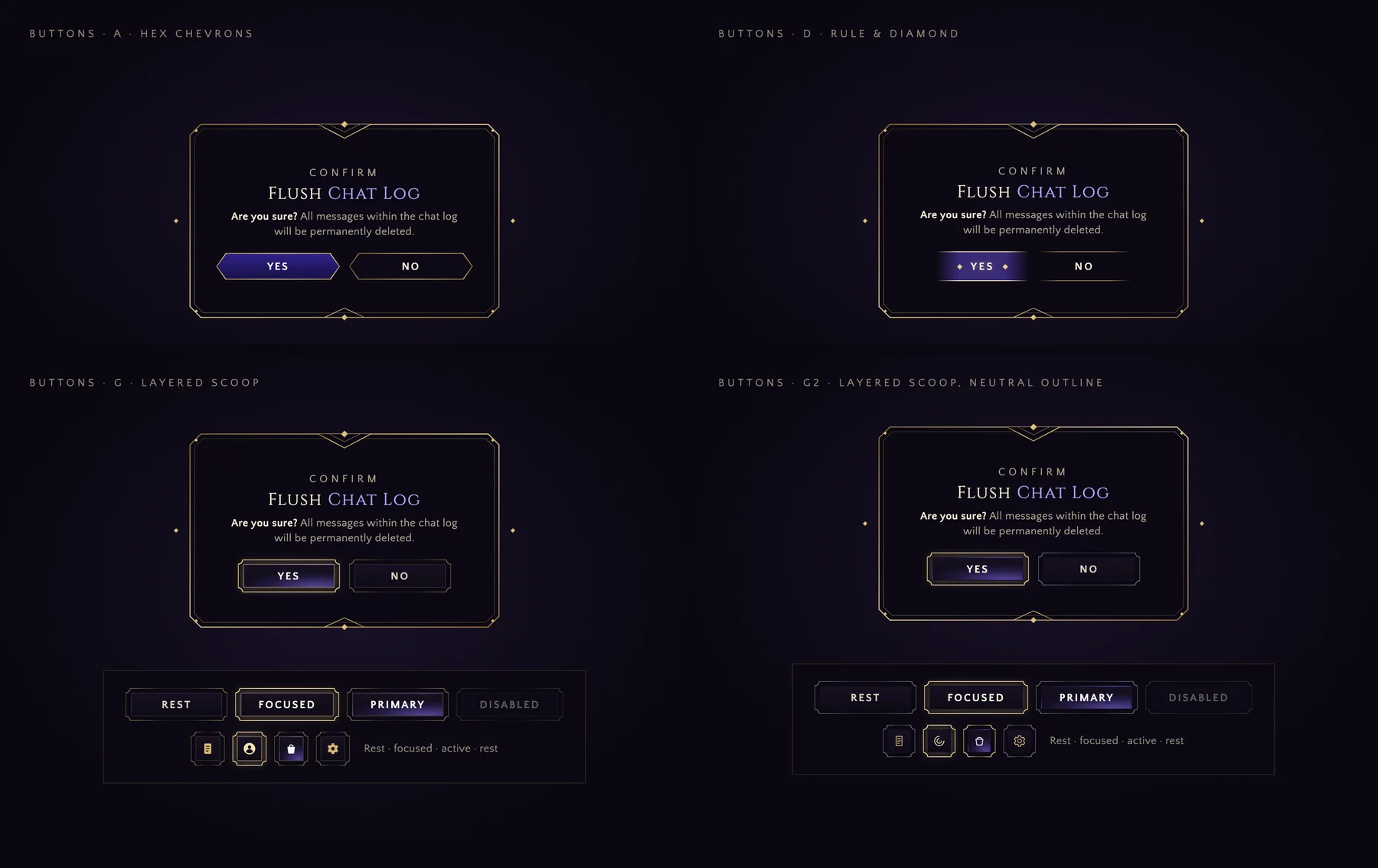
For now, I decided to go with the chamfered button shape, with scooped corners. After a few requests for tweaks the button design didn’t feel too overdone, but I might change my mind and go with a simpler shape after I design more screens for the UI. In screens with too many buttons these could carry a lot of weight, so the goal is to never have too many buttons at once. But Foundry is a tricky platform, with hundreds of developers and even more modules, so it’s hard to control what the interface will be. I do have some ideas about that using AI, though. That’s another topic I’ll share in the future.
Putting the buttons to test
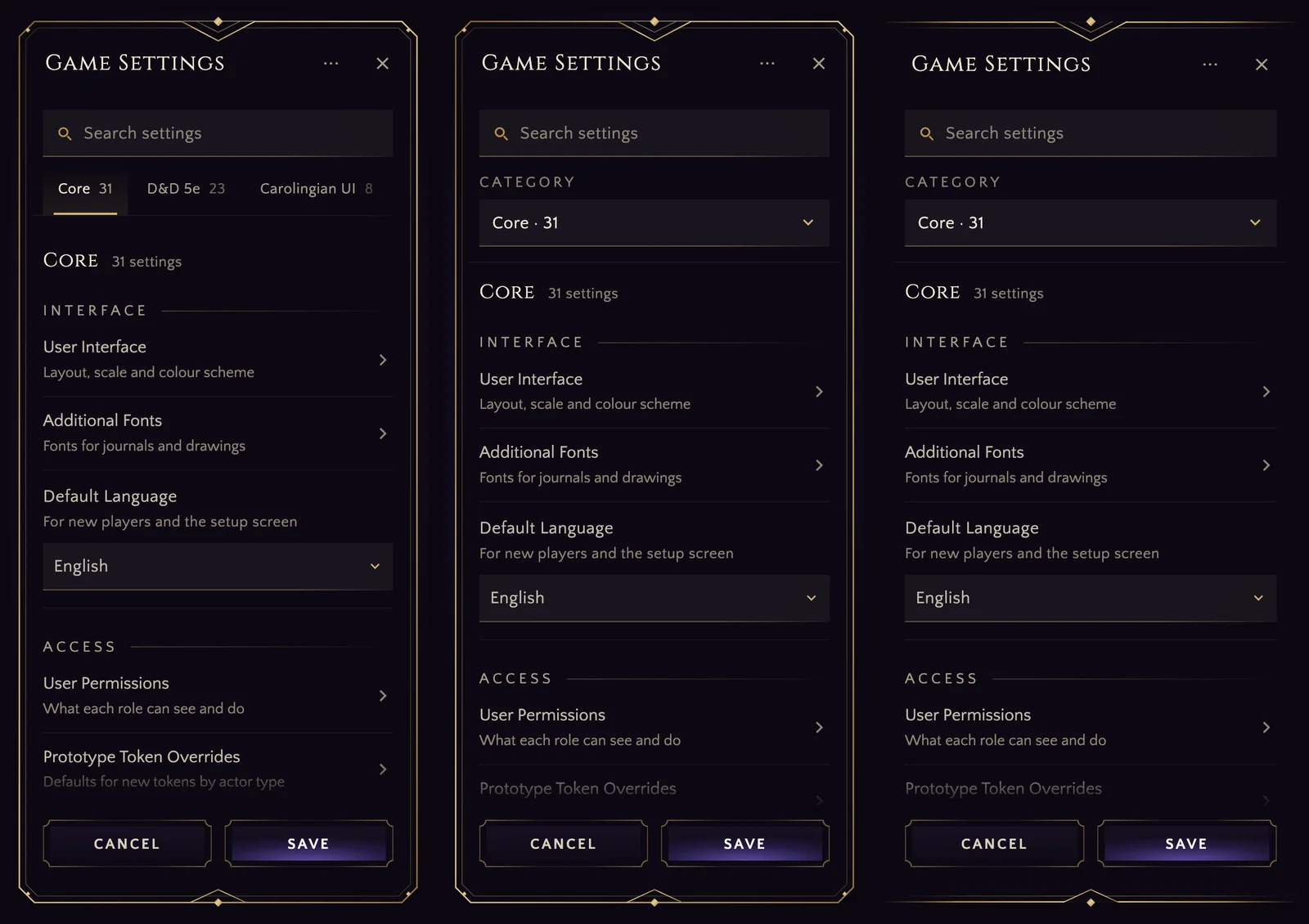
To check how multiple buttons would look like together, I tried them on the Virtual Tabletop settings dialog, which feels very cluttered. The multiple buttons, as expected, didn’t look too great. But instead of changing the buttons, I decided to attack the source of the problem: why have a button for each setting anyway? All that button does is open a submenu, so a caret would do the job just as well.
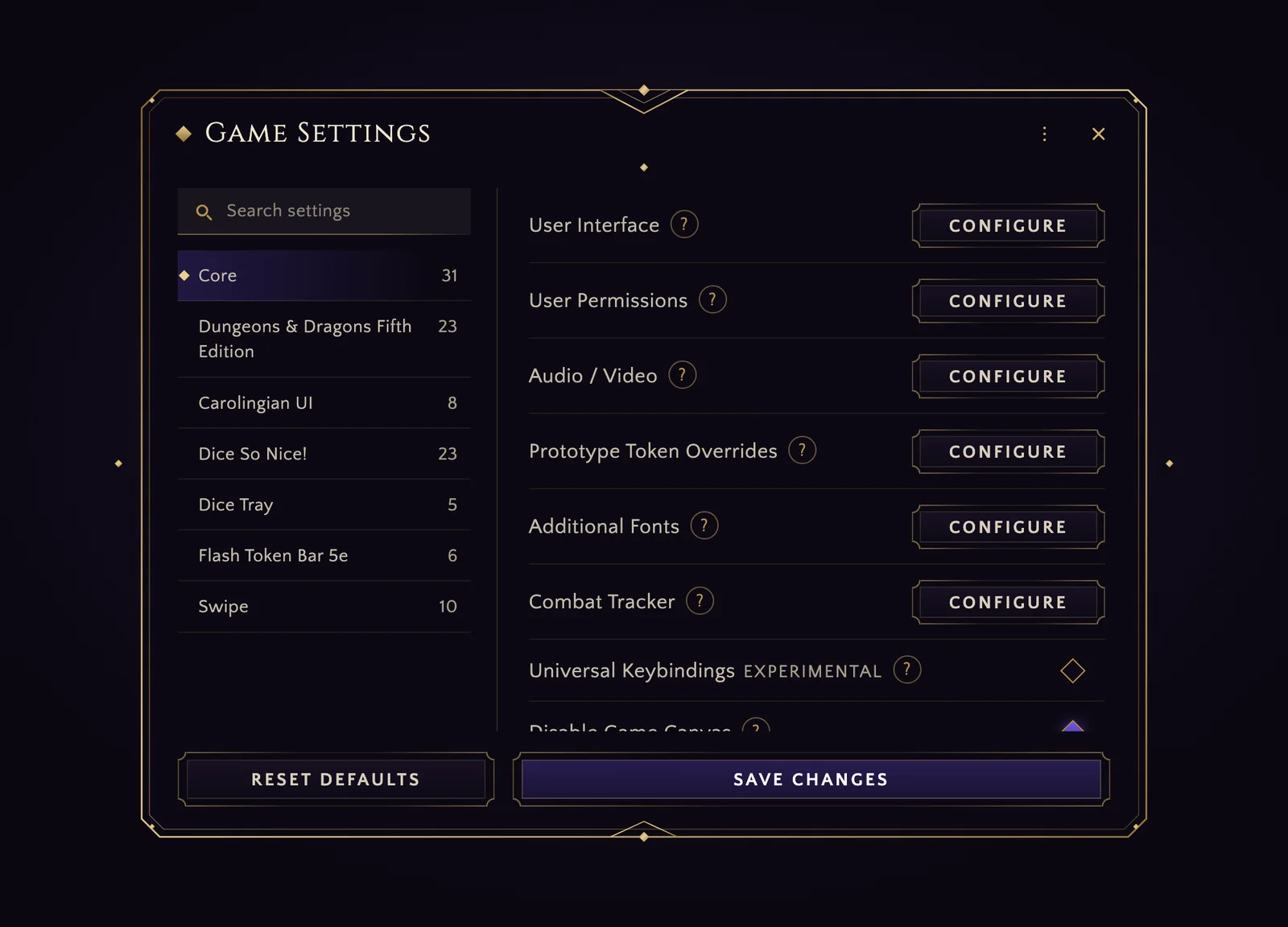
From there, I decided to unclutter this dialog a bit more by removing unnecessary lines, adding more breathing space and separating the dozens of settings into subcategories. I think it already looks better, but my plan is to make setting discovery and adjustment much easier, so these settings are here mostly as a fallback, or for those who don’t want to use AI, since a subset of the community is very resistant to the concept.
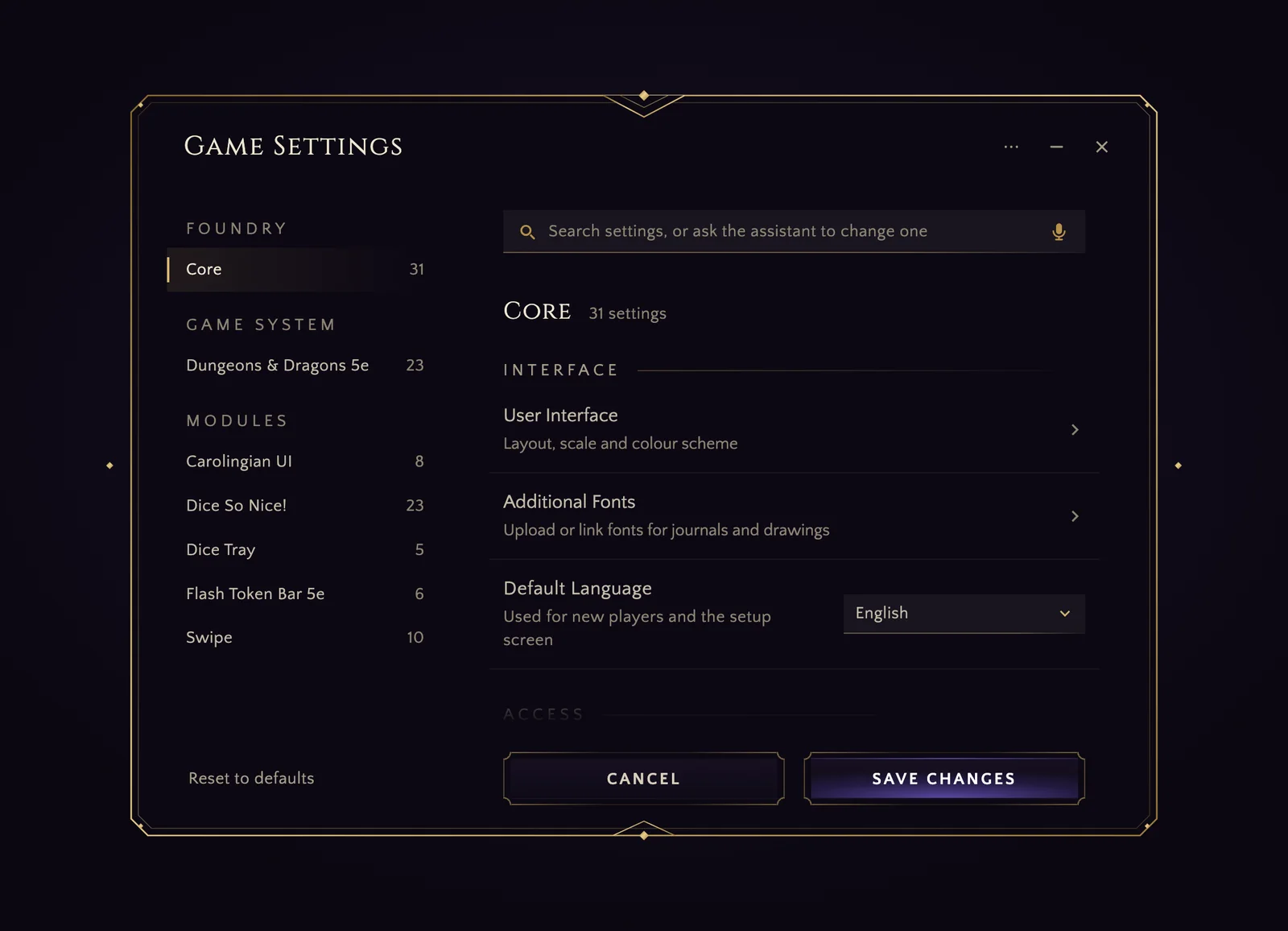
Adapting the interface to mobile size took just a few iterations. There’s still a lot I want to work on, but it was extremely easy to add the responsive artboard and open it on my phone to feel how easy it was to read. It makes such a difference to build with components that are already mostly interactive.
My favorite parts
Comments. It felt just like Figma, as if I were leaving comments for a design partner, and the partner takes just a minute to make the requested change and respond. The comment mechanic was very discoverable and easy to understand.
Mobile testing. Like I mentioned before, testing on the phone was a breeze. For the interactive sample I simply had to connect the phone after enabling wireless debugging on Android, and Claude would open the page for me automatically. For the component screens, the mobile artboards open on the phone straight from the canvas, with basic interaction. Very easy to test, share and request changes.
What a time to be alive! The barrier of tool expertise is dissipating quickly, and now we can focus on what really matters: making technology feel good and easy to use, removing friction, and testing as close to the user experience as possible.